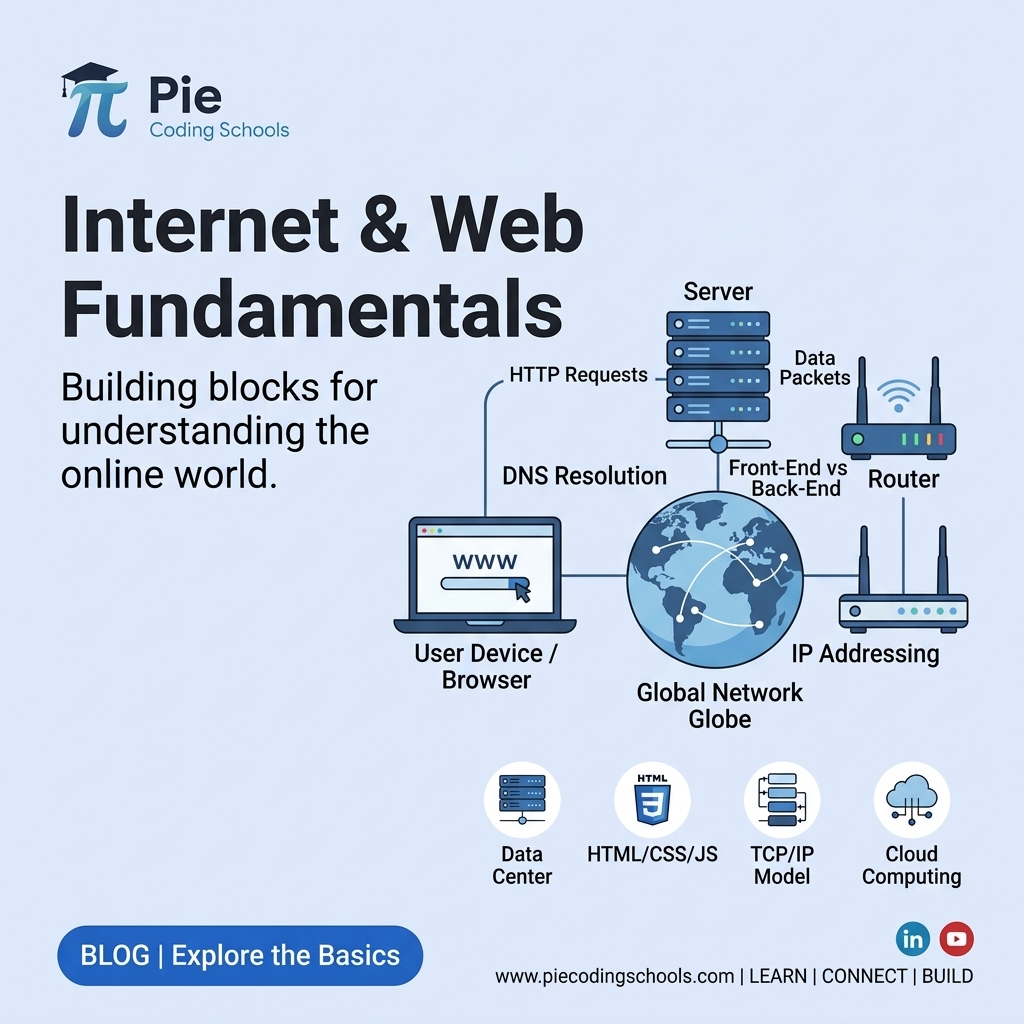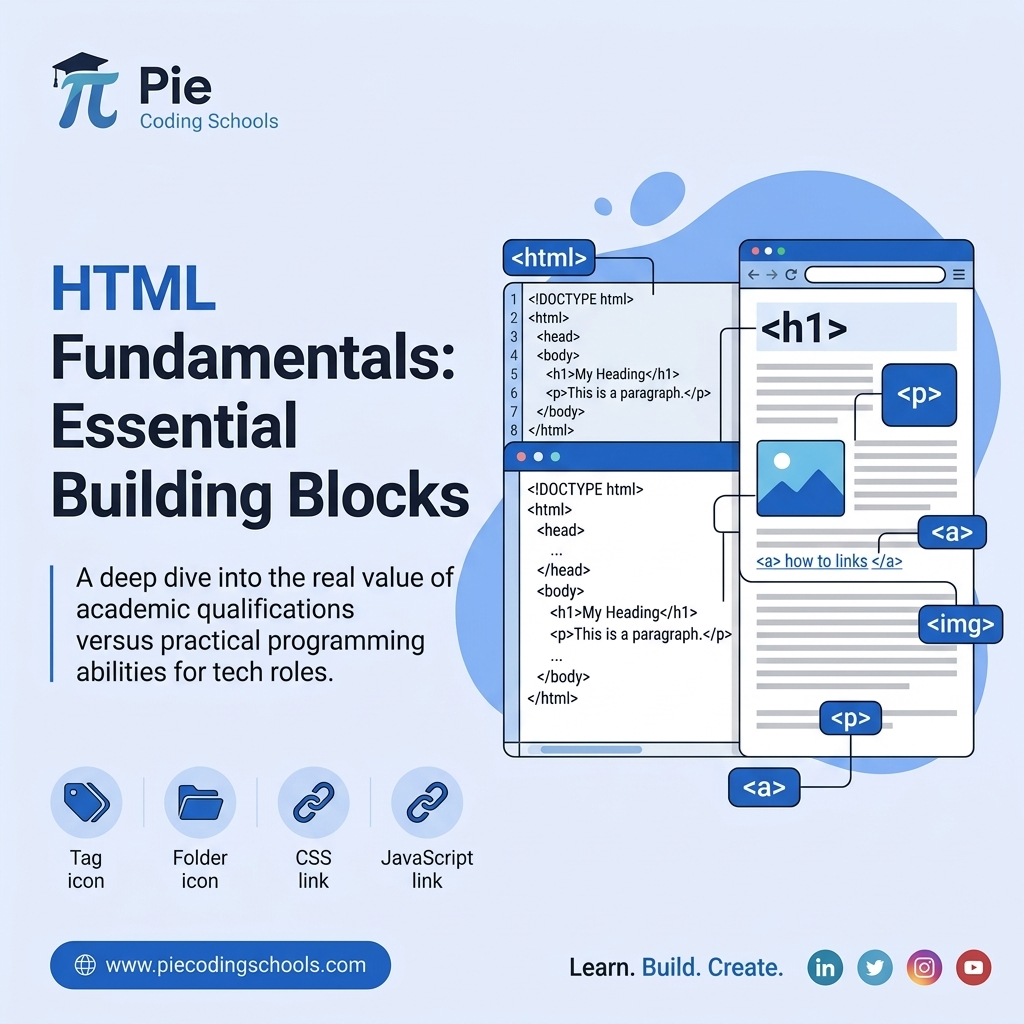
HTML is the foundation of every webpage on the Web. Before learning CSS, JavaScript, React, or any modern frontend framework, you should understand how HTML structures a webpage.
If you have ever opened a website in your browser, you have interacted with a page that is built using HTML. HTML tells the browser what different pieces of content are and how they are structured.
In this guide, we will learn HTML step by step. For every important concept, we will first understand what it is, then why it is used, followed by its syntax and practical examples.
1. What Is HTML?
HTML stands for HyperText Markup Language.
HTML is the standard markup language used to structure content on webpages.
HTML is not a programming language. It is a markup language that uses elements and attributes to describe the structure and meaning of content.
Why Is HTML Used?
HTML is used to tell the browser what different pieces of content represent.
For example, a browser needs to know whether some content is a heading, paragraph, image, link, list, table, or form.
Simple Example
<h1>Welcome to Pie Coding Schools</h1>
<p>Learn programming by building real projects.</p>
Here, <h1> represents a main heading and <p> represents a paragraph.
A simple way to understand the three core frontend technologies is:
HTML       → Structure
CSS        → Design & Layout
JavaScript → Behavior & Interactivity
2. How Does HTML Work?
HTML files normally use the .html extension.
When you open an HTML file in a browser, the browser reads the markup, creates a document structure from it, and renders the page on the screen.
Example
<h1>Hello World</h1>
<p>This is my first webpage.</p>
The browser interprets this markup and displays a heading followed by a paragraph.
HTML to Webpage Flow
HTML File
   ↓
Browser Reads HTML
   ↓
Document Structure
   ↓
Browser Renders Content
   ↓
Webpage
3. Basic HTML Document Structure
Before creating individual elements, you should understand the basic structure of an HTML document.
Why Is Document Structure Important?
A proper document structure helps browsers, developers, search engines, and assistive technologies understand the webpage.
Basic Syntax
<!DOCTYPE html>
<html lang="en">
<head>
    <meta charset="UTF-8">
    <meta name="viewport" content="width=device-width, initial-scale=1.0">
    <title>My First Website</title>
</head>
<body>

    <h1>Hello World</h1>
    <p>Welcome to my website.</p>

</body>
</html>
DOCTYPE
<!DOCTYPE html> tells the browser that the document should be interpreted using the modern HTML standard.
html Element
The <html> element is the root element of the document.
The lang attribute specifies the primary language of the page.
<html lang="en">head Element
The <head> contains metadata and resources used by the browser and other systems.
Examples include the page title, character encoding, viewport configuration, stylesheets, and metadata.
body Element
The <body> contains the main content displayed on the webpage.
4. What Is an HTML Element?
An HTML element is a complete building block of an HTML document.
It generally consists of an opening tag, content, and a closing tag.
Why Are HTML Elements Used?
Elements tell the browser what a piece of content represents.
Example
<p>Hello World</p>Here:
<p>is the opening tag.Hello Worldis the content.</p>is the closing tag.
Void Elements
Some HTML elements do not contain content and do not require closing tags. These are commonly called void elements.
<img>
<br>
<hr>
<input>
<meta>
<link>
5. What Are HTML Attributes?
HTML attributes provide additional information about an HTML element.
Why Are Attributes Used?
Attributes allow us to configure or describe an element.
For example, an image needs to know where its file is located, while a link needs to know where it should navigate.
Syntax
<element attribute="value">Example
<a href="https://piecodingschools.com">
    Pie Coding Schools
</a>
Here, href is the attribute and its value is the website URL.
Common Attributes
id
class
href
src
alt
title
width
height
name
value
placeholder
required
disabled
hidden
data-*
6. What Are HTML Headings?
HTML headings are used to define the titles and hierarchy of sections in a webpage.
Why Are Headings Used?
Headings organize content and make the structure of a document easier to understand.
Heading Levels
<h1>Main Heading</h1>
<h2>Section Heading</h2>
<h3>Subsection Heading</h3>
<h4>Heading 4</h4>
<h5>Heading 5</h5>
<h6>Heading 6</h6>
<h1> represents the highest-level heading, while <h6> represents a lower-level heading.
Real-World Example
<h1>Web Development</h1>

<h2>HTML</h2>
<h3>HTML Elements</h3>
<h3>HTML Forms</h3>

<h2>CSS</h2>
<h3>CSS Selectors</h3>
<h3>CSS Layout</h3>
Choose headings based on the structure and meaning of the content, not simply because a particular heading looks larger.
7. What Is an HTML Paragraph?
The <p> element represents a paragraph of text.
Why Is It Used?
Paragraphs are used to organize normal written content into readable sections.
Example
<p>HTML is the foundation of web development.</p>Useful Text Elements
<strong>Important text</strong>
<em>Emphasized text</em>
<mark>Highlighted text</mark>
<small>Small text</small>
<sub>Subscript</sub>
<sup>Superscript</sup>
<br>
<hr>
Use semantic elements such as <strong> and <em> when their meaning is appropriate.
8. What Are HTML Links?
An HTML link allows users to navigate from one location to another.
Why Are Links Used?
Links are used for navigation between pages, websites, sections of a page, documents, and other resources.
Basic Syntax
<a href="URL">Link Text</a>Example
<a href="https://piecodingschools.com">
    Visit Pie Coding Schools
</a>
Internal Link
<a href="/about">About Us</a>Open in a New Browsing Context
<a href="https://example.com" target="_blank" rel="noopener noreferrer">
    Visit Example
</a>
Use descriptive link text so users can understand where the link will take them.
9. What Is an HTML Image?
The <img> element embeds an image into a webpage.
Why Are Images Used?
Images can communicate information, demonstrate products, show illustrations, and improve visual communication.
Basic Syntax
<img src="image.jpg" alt="Description of image">Example
<img src="profile.jpg" alt="Profile photo">Important Attributes
src— Specifies the image source.alt— Provides alternative text.width— Specifies the width.height— Specifies the height.
The alt attribute is important for accessibility and provides useful information when an image cannot be displayed.
10. What Is an HTML List?
An HTML list is a collection of related items presented in a structured format.
Why Are Lists Used?
Lists are commonly used for navigation menus, skills, features, instructions, steps, categories, and other groups of related information.
Types of HTML Lists
HTML provides three commonly used types of lists:
- Unordered List
- Ordered List
- Description List
10.1 What Is an Unordered List?
An unordered list represents a collection of items where the order is not important.
It is created using <ul>, with individual items represented using <li>.
Example
<ul>
    <li>HTML</li>
    <li>CSS</li>
    <li>JavaScript</li>
</ul>
Real-World Example
<h2>My Skills</h2>

<ul>
    <li>HTML</li>
    <li>CSS</li>
    <li>JavaScript</li>
    <li>React</li>
</ul>
10.2 What Is an Ordered List?
An ordered list represents items where the order or sequence is important.
It is created using <ol>.
Example
<ol>
    <li>Learn HTML</li>
    <li>Learn CSS</li>
    <li>Learn JavaScript</li>
</ol>
Real-World Example
<h2>How to Build a Website</h2>

<ol>
    <li>Create the HTML structure</li>
    <li>Add CSS styles</li>
    <li>Add JavaScript functionality</li>
    <li>Deploy the website</li>
</ol>
10.3 What Is a Description List?
A description list is used to represent terms and their corresponding descriptions.
It uses <dl>, <dt>, and <dd>.
Example
<dl>
    <dt>HTML</dt>
    <dd>Structures webpages.</dd>

    <dt>CSS</dt>
    <dd>Styles webpages.</dd>
</dl>
11. What Is an HTML Table?
An HTML table is used to represent information in rows and columns.
Why Are Tables Used?
Tables are useful when information has a natural row-and-column relationship, such as schedules, reports, pricing data, and comparison data.
Tables should generally be used for tabular data rather than for creating the visual layout of a webpage.
Important Table Elements
<table>
<thead>
<tbody>
<tfoot>
<tr>
<th>
<td>
<caption>
Example
<table>
    <thead>
        <tr>
            <th>Name</th>
            <th>Course</th>
        </tr>
    </thead>

    <tbody>
        <tr>
            <td>Rahul</td>
            <td>Web Development</td>
        </tr>
        <tr>
            <td>Priya</td>
            <td>Java Programming</td>
        </tr>
    </tbody>
</table>
12. What Is an HTML Form?
An HTML form is a section of a webpage that allows users to enter and submit information.
Why Are Forms Used?
Forms are used for registration, login, contact messages, searches, applications, surveys, checkout processes, and many other interactions.
Basic Structure
<form>
    <label for="name">Name</label>
    <input type="text" id="name" name="name">

    <button type="submit">Submit</button>
</form>
Important Form Elements
<form>
<label>
<input>
<textarea>
<select>
<option>
<button>
13. What Is an HTML Input?
The <input> element is a form control that allows users to enter or select information.
Why Is Input Used?
Different input types allow a form to collect different kinds of information.
Basic Syntax
<input type="text">Common Input Types
<input type="text">
<input type="email">
<input type="password">
<input type="number">
<input type="tel">
<input type="url">
<input type="search">
<input type="date">
<input type="time">
<input type="checkbox">
<input type="radio">
<input type="file">
<input type="range">
<input type="color">
<input type="submit">
<input type="reset">
<input type="hidden">
Practical Example
<label for="email">Email Address</label>
<input
    type="email"
    id="email"
    name="email"
    placeholder="Enter your email"
    required
>
Here:
type="email"identifies the expected kind of input.ididentifies the element.nameidentifies the form field when its data is submitted.placeholderprovides a temporary hint.requiredindicates that the field must be completed before submission.
14. What Is a Label?
The <label> element provides a text label for a form control.
Why Are Labels Used?
Labels help users understand what information a form field expects and improve form accessibility.
Example
<label for="username">Username</label>
<input type="text" id="username" name="username">
The for attribute of the label is connected to the input's id.
15. What Is a Button?
The <button> element creates an interactive button.
Why Are Buttons Used?
Buttons are commonly used to submit forms, trigger actions, or interact with JavaScript functionality.
Button Types
<button type="button">Click Me</button>
<button type="submit">Submit</button>
<button type="reset">Reset</button>
When a button is inside a form, explicitly specifying its type helps make its intended behavior clear.
16. What Is a Textarea?
The <textarea> element allows users to enter multiple lines of text.
Why Is Textarea Used?
It is useful for messages, comments, descriptions, feedback, and other longer text.
Example
<label for="message">Message</label>
<textarea
    id="message"
    name="message"
    rows="5"
    placeholder="Enter your message"
></textarea>
17. What Are Select and Option Elements?
The <select> element creates a list of choices, while <option> defines an individual choice.
Why Are They Used?
They are useful when a user needs to select one or more values from a predefined set of choices.
Example
<label for="course">Choose a Course</label>

<select id="course" name="course">
    <option value="web">Web Development</option>
    <option value="java">Java</option>
    <option value="python">Python</option>
</select>
18. What Is Semantic HTML?
Semantic HTML means using HTML elements according to their meaning and purpose.
Why Is Semantic HTML Used?
Semantic HTML makes the structure of a webpage easier to understand for developers, browsers, search engines, and assistive technologies.
Instead of using generic containers everywhere, use a meaningful HTML element when one exists.
Common Semantic Elements
<header>
<nav>
<main>
<section>
<article>
<aside>
<footer>
Example
<header>
    <h1>Pie Coding Schools</h1>
</header>

<nav>
    <a href="/about">About</a>
    <a href="/programs">Programs</a>
</nav>

<main>
    <section>
        <h2>Web Development</h2>
        <p>Learn web development by building real projects.</p>
    </section>
</main>

<footer>
    <p>© 2026 Pie Coding Schools</p>
</footer>
19. What Is the Header Element?
The <header> element represents introductory content for a page or section.
Why Is It Used?
It is commonly used for branding, headings, introductory content, and navigation-related content.
Example
<header>
    <h1>Pie Coding Schools</h1>
    <p>Build Real Products. Launch Your Tech Career.</p>
</header>
20. What Is the Nav Element?
The <nav> element represents a section containing important navigation links.
Why Is It Used?
It helps identify navigation areas within a webpage.
Example
<nav>
    <a href="/">Home</a>
    <a href="/programs">Programs</a>
    <a href="/mentors">Mentors</a>
    <a href="/about">About</a>
</nav>
21. What Are Main, Section, Article, Aside, and Footer?
These elements help divide a webpage into meaningful structural areas.
main
<main> represents the primary content of the page.
section
<section> represents a thematic section of content, normally with a heading.
article
<article> represents a self-contained piece of content, such as a blog article, news item, or forum post.
aside
<aside> represents content related to the surrounding content but not part of its main flow.
footer
<footer> represents footer information for a page or section.
Example
<main>
    <section>
        <h2>Latest Courses</h2>

        <article>
            <h3>Web Development</h3>
            <p>Learn HTML, CSS, JavaScript, and React.</p>
        </article>
    </section>

    <aside>
        <h2>Related Resources</h2>
    </aside>
</main>
22. What Are Div and Span?
<div> and <span> are generic HTML containers.
Why Are They Used?
They are useful when no more specific semantic element describes the content.
Div
<div> is commonly used as a generic block-level container.
<div class="card">
    <h2>HTML Course</h2>
    <p>Learn HTML fundamentals.</p>
</div>
Span
<span> is commonly used as a generic inline container.
<p>
    Learn <span>HTML</span> fundamentals.
</p>
Do not use <div> for everything when a meaningful semantic element exists.
23. What Are Block and Inline Elements?
HTML elements have default layout behavior that affects how they appear in the document flow.
What Is a Block-Level Element?
A block-level element normally starts on a new line and takes up the available width of its containing block.
Common Examples
<div>
<p>
<h1>
<section>
<article>
<header>
<footer>
Example
<div>First block</div>
<div>Second block</div>
Conceptually, the elements appear one after another on separate lines.
What Is an Inline Element?
An inline element normally occupies only the space required by its content and does not automatically start on a new line.
Common Examples
<span>
<a>
<strong>
<em>
<small>
Example
<p>
    Learn <strong>HTML</strong> and <em>CSS</em>.
</p>
The inline elements can appear within the same line of text.
Block vs Inline
Block Element
→ Normally starts on a new line
→ Usually takes available width

Inline Element
→ Normally stays within the current line
→ Usually takes only required content width
CSS can change an element's display behavior, so these are the normal/default layout behaviors rather than permanent rules.
24. What Are HTML Comments?
HTML comments are notes written inside HTML that are not displayed as normal page content.
Why Are Comments Used?
Comments can help developers explain sections of code or leave notes for future development.
Syntax
<!-- This is an HTML comment -->Do not put passwords, API keys, secrets, or other sensitive information inside comments because the HTML is delivered to the browser.
25. What Are HTML Entities?
HTML entities allow you to represent reserved characters and special characters in HTML.
Why Are Entities Used?
Some characters have special meanings inside HTML. Entities provide a way to represent those characters as text.
Examples
< → <
> → >
& → &
© → ©
→ Non-breaking space26. What Are HTML Meta Tags?
Meta elements provide information about an HTML document that is generally not displayed as normal page content.
Why Are Meta Tags Used?
They provide information that can help browsers, search engines, and other systems understand or process the page.
Common Examples
<meta charset="UTF-8">

<meta name="viewport" content="width=device-width, initial-scale=1.0">

<meta name="description" content="Learn web development with practical projects.">
Viewport Meta Tag
The viewport meta tag is important for making webpages behave appropriately across different device sizes.
27. HTML and Basic SEO
HTML provides important structural information that helps search engines understand webpage content.
Why Does HTML Matter for SEO?
Search engines need to understand the structure, topic, and relationships within a webpage.
Useful Practices
- Use meaningful page titles.
- Use a logical heading hierarchy.
- Use descriptive link text.
- Use meaningful alternative text for images.
- Use semantic HTML where appropriate.
- Write useful and descriptive content.
HTML alone does not guarantee search rankings, but good document structure provides a useful foundation for search understanding.
28. What Is HTML Accessibility?
Accessibility means building websites that can be used by people with different abilities and assistive technologies.
Why Is Accessibility Important?
A website should be usable by as many people as reasonably possible, including people who use keyboards, screen readers, magnification, or other assistive technologies.
Important HTML Accessibility Practices
- Use semantic HTML.
- Use labels for form controls.
- Provide useful
alttext for meaningful images. - Use a logical heading structure.
- Use descriptive link text.
- Do not rely only on color to communicate information.
Example
<label for="email">Email Address</label>
<input type="email" id="email" name="email">
The label is explicitly associated with the input using the for and id attributes.
29. What Are Figure and Figcaption?
The <figure> element represents self-contained content such as an image, diagram, illustration, or other referenced content.
The <figcaption> element provides a caption for that content.
Why Are They Used?
They provide meaningful structure when an image or illustration has an associated caption.
Example
<figure>
    <img src="roadmap.png" alt="Web development roadmap">
    <figcaption>Frontend Web Development Roadmap</figcaption>
</figure>
30. What Are Details and Summary?
The <details> element creates a native expandable section, while <summary> provides its visible label.
Why Are They Used?
They are useful for FAQs, additional information, and expandable content without requiring JavaScript for the basic interaction.
Example
<details>
    <summary>What is HTML?</summary>
    <p>HTML is the markup language used to structure webpages.</p>
</details>
31. What Is an iframe?
The <iframe> element embeds another webpage or supported external content inside the current webpage.
Why Is iframe Used?
It can be useful for embedding certain external resources such as maps, videos, or other supported content.
Example
<iframe
    src="https://example.com"
    title="Example website"
    width="600"
    height="400">
</iframe>
When embedding external content, consider security, privacy, performance, and whether the embedded content is necessary.
32. What Are Global HTML Attributes?
Global attributes are attributes that can be used by many different HTML elements.
Why Are They Used?
They provide common ways to identify, describe, configure, or attach information to elements.
Common Global Attributes
id
class
title
lang
dir
hidden
data-*
Class Example
<div class="course-card">
    Web Development
</div>
The class attribute is commonly used by CSS and JavaScript to identify groups of elements.
ID Example
<section id="about">
    <h2>About Us</h2>
</section>
The id identifies a particular element within the document.
Data Attribute Example
<button data-course="web-development">
    Learn More
</button>
Custom data-* attributes allow developers to store custom data associated with an element.
33. Common HTML Mistakes Beginners Make
Using Div for Everything
Not every section should be a <div>. Use semantic elements when they better describe the content.
Ignoring Alt Text
Meaningful images should generally have appropriate alternative text.
Using Headings Only for Size
Choose headings according to document structure and meaning rather than visual size.
Forgetting Form Labels
Form controls should have clear and accessible labels.
Using Tables for Page Layout
Tables should generally represent tabular data rather than being used as a general layout system.
Putting Secrets in HTML
HTML is delivered to the browser. Do not treat comments, hidden fields, or frontend markup as secure storage for secrets.
Writing Poorly Structured HTML
Keep your HTML properly nested and use appropriate elements for the content.
34. Build Your First HTML Project
Now let's combine the concepts we learned by creating a simple personal portfolio webpage using only HTML.
Project Goal
We will create a page containing:
- Header
- Navigation
- About section
- Skills list
- Projects
- Contact form
- Footer
Complete Example
<!DOCTYPE html>
<html lang="en">
<head>
    <meta charset="UTF-8">
    <meta name="viewport" content="width=device-width, initial-scale=1.0">
    <meta name="description" content="My personal portfolio website">
    <title>My Portfolio</title>
</head>
<body>

    <header>
        <h1>Your Name</h1>
        <p>Web Developer</p>

        <nav>
            <a href="#about">About</a>
            <a href="#skills">Skills</a>
            <a href="#projects">Projects</a>
            <a href="#contact">Contact</a>
        </nav>
    </header>

    <main>

        <section id="about">
            <h2>About Me</h2>
            <p>
                I am learning web development by building real projects.
            </p>
        </section>

        <section id="skills">
            <h2>Skills</h2>

            <ul>
                <li>HTML</li>
                <li>CSS</li>
                <li>JavaScript</li>
            </ul>
        </section>

        <section id="projects">
            <h2>Projects</h2>

            <article>
                <h3>Portfolio Website</h3>
                <p>
                    A personal website built using HTML.
                </p>
            </article>
        </section>

        <section id="contact">
            <h2>Contact Me</h2>

            <form>
                <label for="name">Name</label>
                <input
                    type="text"
                    id="name"
                    name="name"
                    required
                >

                <label for="email">Email</label>
                <input
                    type="email"
                    id="email"
                    name="email"
                    required
                >

                <label for="message">Message</label>
                <textarea
                    id="message"
                    name="message"
                    rows="5"
                ></textarea>

                <button type="submit">
                    Send Message
                </button>
            </form>
        </section>

    </main>

    <footer>
        <p>© 2026 My Portfolio</p>
    </footer>

</body>
</html>
35. What Should You Know After Learning HTML?
After completing this guide, you should understand how HTML is used to structure a webpage and how the major HTML elements work together.
You should be comfortable with:
- HTML document structure
- Elements and attributes
- Headings and paragraphs
- Text elements
- Links
- Images
- Unordered, ordered, and description lists
- Tables
- Forms
- Input types
- Labels and buttons
- Textarea and select controls
- Semantic HTML
- Div and span
- Block and inline elements
- Comments and entities
- Meta tags
- Basic SEO structure
- Accessibility basics
- Global attributes
- Common HTML mistakes
What Should You Learn Next?
HTML gives your webpage its structure, but HTML alone does not provide the complete visual design of a modern website.
The next step is CSS.
HTML
 ↓
Structure
 ↓
CSS
 ↓
Design & Layout
 ↓
JavaScript
 ↓
Behavior & Interactivity
In the next stage, you will learn how CSS works, how selectors target HTML elements, how the box model works, how to create layouts using Flexbox and Grid, and how to build responsive webpages.
Final Thoughts
HTML may look simple at first, but understanding HTML properly gives you a strong foundation for everything that comes later in web development.
Do not try to memorize every HTML tag. Instead, understand what an element is, why it is used, when to use it, and how it works together with other elements.
Once you can create a complete webpage using HTML, you are ready to make it beautiful with CSS and interactive with JavaScript.
About Pie Coding Schools
At Pie Coding Schools, we believe programming is best learned by understanding fundamentals and building real projects.
Our learning approach focuses on practical development, industry-relevant technologies, real projects, and skills that help students move from learning concepts to building software.
Build Real Products. Launch Your Tech Career. 🚀